
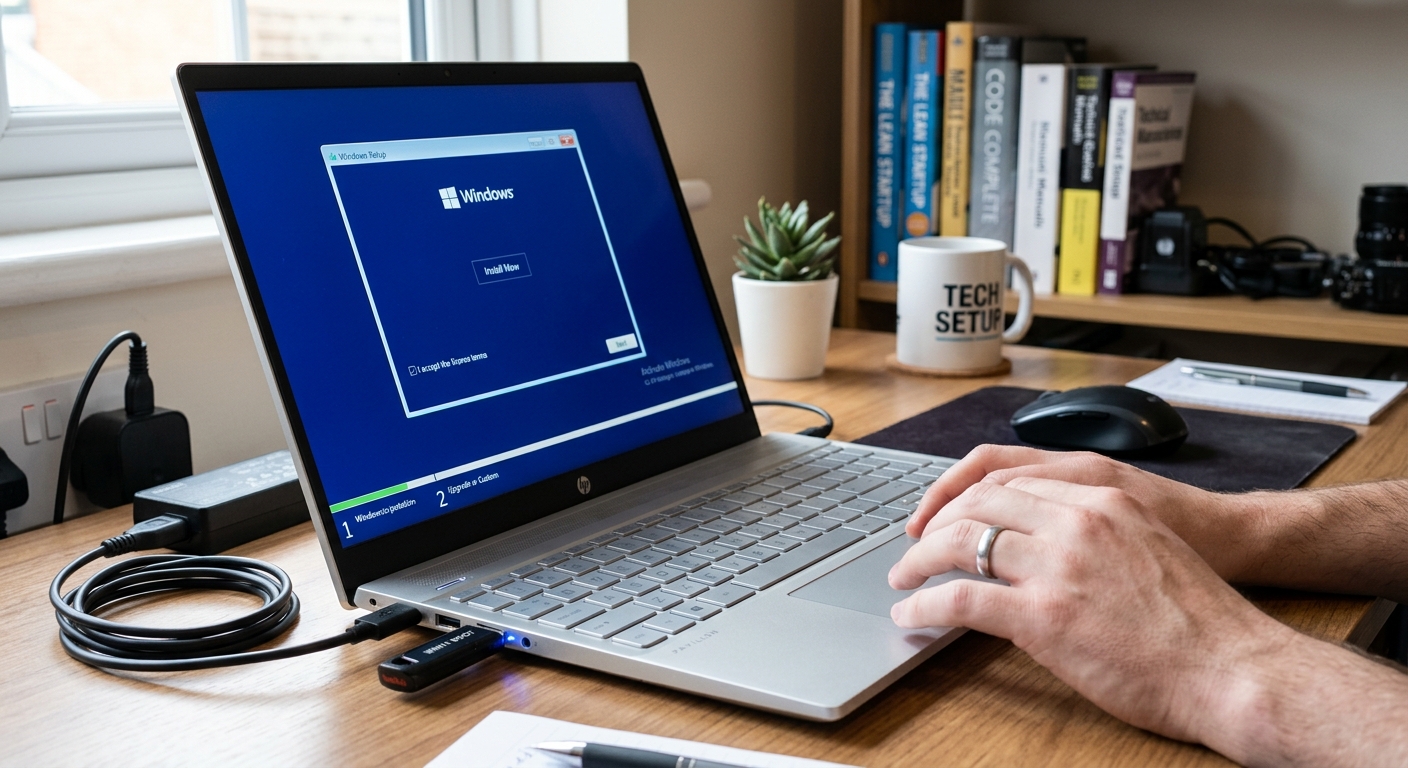
Before you start
- Back up your data. A clean install erases the drive. Copy documents, photos, browser bookmarks, and anything on the Desktop/Downloads folders to an external drive or cloud storage.
- Note your software licenses. Save any license keys for paid programs (Office, Adobe, etc.).
- Check your Windows license. Windows 10/11 licenses are usually tied to your hardware or Microsoft account, so it should reactivate automatically. Go to Settings > System > Activation to confirm.
- Download drivers in advance. From your laptop maker's support site (Dell, HP, Lenovo, etc.), download the Wi-Fi/LAN, chipset, and graphics drivers, and save them to a USB drive. This avoids having no internet after install.
- Plug in the charger. Don't let the laptop die mid-install.
Step 1: Create the bootable USB
- Get a USB drive with 8 GB or more (it will be erased).
- On a working PC, download the Media Creation Tool from Microsoft's official site (Windows 11 or Windows 10 version).
- Run it, choose Create installation media (USB flash drive, DVD, or ISO), select language/edition, and choose your USB drive.
- Wait until it finishes.
Step 2: Boot the laptop from the USB
- Plug the USB into the laptop and restart it.
- As it powers on, repeatedly press the boot menu key. Common ones:
- Dell: F12
- HP: F9 or Esc
- Lenovo: F12 or Novo button
- ASUS: Esc or F8
- Acer: F12
- Select your USB drive from the list (sometimes shown as "UEFI: USB...").
If the boot menu doesn't appear, enter BIOS/UEFI (usually F2 or Del) and change the boot order, or disable Fast Boot.
Step 3: Install Windows
- Choose your language, time format, and keyboard, then click Next > Install now.
- When asked for a product key, click I don't have a product key (it will activate automatically if previously activated).
- Select the Windows edition that matches what you had before (Home or Pro).
- Accept the license terms.
- Choose Custom: Install Windows only (advanced).
- On the drive selection screen:
- Select each partition on Drive 0 (System, Primary, Recovery, etc.) and click Delete until you have a single block of Unallocated Space.
- Select the unallocated space and click Next. Windows will create the needed partitions itself.
⚠️ If the laptop has two drives, be careful to pick the right one (Drive 0 is usually the main one).
- Wait while Windows copies files and restarts a few times. Remove the USB when it first reboots, or ignore the "Press any key to boot from USB" prompt.
Step 4: Initial setup
- Select your region and keyboard layout.
- Connect to Wi-Fi (if you can't, choose "I don't have internet" and install the Wi-Fi driver later).
- Sign in with a Microsoft account, or create a local account.
- Set a PIN and choose privacy settings.
Step 5: After installation
- Run Windows Update (Settings > Windows Update) and install everything, restarting as needed.
- Install drivers. Use the ones saved on your USB, or run your manufacturer's update tool (Dell SupportAssist, HP Support Assistant, Lenovo Vantage).
- Check Device Manager (right-click Start > Device Manager) for any yellow warning icons.
- Verify activation in Settings > System > Activation.
- Install your programs (browser, Office, antivirus, etc.).
- Restore your backed-up files.
- Create a restore point or system image once everything is set up, so you can recover quickly in the future.
Quick troubleshooting
- USB not detected: Try a different USB port, or recreate the USB using Rufus (choose GPT for UEFI or MBR for older BIOS).
- "Windows can't be installed to this disk": Usually a GPT/MBR mismatch. Delete all partitions on the drive and retry, or match the USB's partition scheme to your BIOS mode.
- No drives shown: You may need to load a storage driver (Intel RST/VMD) from the manufacturer's site, or switch SATA mode in the BIOS.
0 Comments